FOR BUSINESSES AND BOOKKEEPERS

Less chasing.
A clear next step.

Keep your invoice follow-ups together, from the first reminder to the next customer commitment.

Start with one company. Keep your team in control.

A walkthrough of team timesheets, firm billing, and client follow-up in a practice workspace. Business workspaces also include time recording and weekly review.

Real dashboard. Fictional sample data. AI narration.

Download video
Jump to a part of the demo
ONE PRODUCT. TWO WAYS TO WORK.

Your company, or your clients.
A workspace that fits.

Invoice follow-up and team time, organized around the work you do.

FOR BUSINESS OWNERS

Keep your own invoices moving.

One company, its customers, and every unpaid invoice. Invite your colleagues or bookkeeper while keeping ownership of your workspace.

  • Your company is created during setup.
  • My business keeps customers and accounting together.
  • Track team hours, review weekly timesheets, and export approved time.
Explore the business setup Business pricing →
FOR BOOKKEEPING FIRMS

Follow through for every client.

A portfolio of client companies, each with its own invoices and accounting connection. Give your bookkeeping team a shared view of what needs attention.

  • Add the companies whose books you manage.
  • Review one client or the whole practice.
  • Record client work and turn approved billable hours into firm invoices.
Explore the practice setup Practice pricing →
FOR YOUR FIRM'S OWN WORK

Record the hours. Review the work. Invoice the client.

Read the invoicing guide
  1. 01

    Set up your team

    Use Settings → Team for employees, contractors, logins, and reviewer permissions. Choose a client when recording time.

  2. 02

    Record and review

    Use My time to add hours or run a timer. Submit the week, then approve it or return it with a correction reason.

  3. 03

    Prepare the invoice

    In Our firm → Billing, review unbilled work across clients. Turn approved billable hours into a draft, finalize it, and preview the email before sending.

Business workspaces also support team time and approvals. Firm invoicing is for bookkeeping practices; syncing to firm QuickBooks books is separate from sending the invoice email.

A FAMILIAR PIECE OF YOUR WEEK

For the team behind
the follow-up.

Clawrk fits businesses following up on their own invoices and practices doing that work for clients. Bring one recurring task into a shared workspace and see how it works for your team.

Does this sound like your week?

  • You check overdue invoices for your business or practice clients.
  • Reminders and customer updates take time to put together.
  • Payment promises live in emails, notes, or someone's memory.
  • Colleagues need an easier way to see what happened last.

If you work with a bookkeeper, agree who reviews reminders and handles replies. Practice teams should make that agreement with each client.

ONE INVOICE. A CLEAR ROUTINE.

Know what happened.
Choose what happens next.

  1. 01

    Find the invoice that needs attention

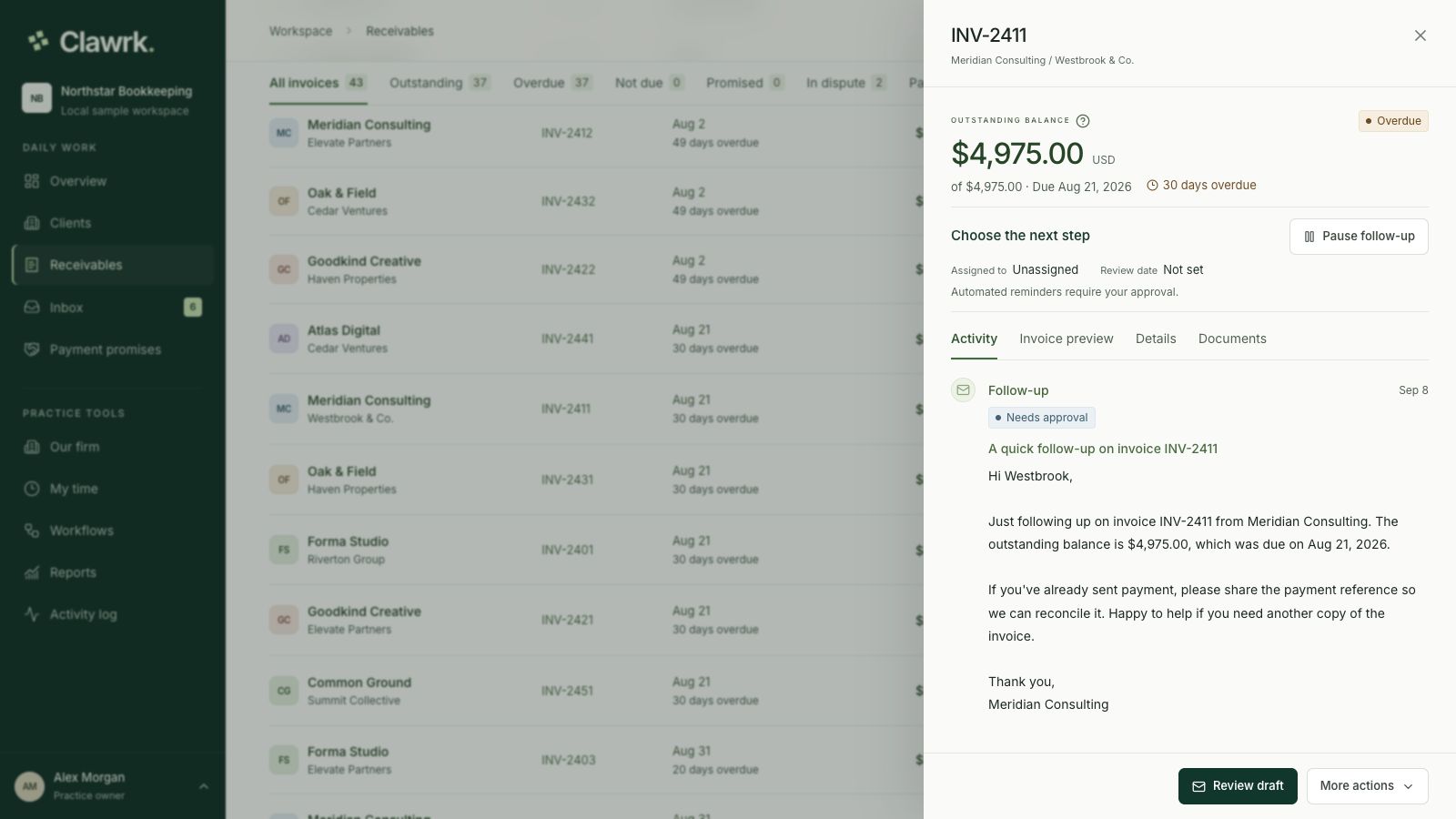
    Check the balance, recipient, and history. See whether a promise or dispute already calls for a pause.

  2. 02

    Review the reminder

    Read and adjust the draft in Inbox. Your team approves every follow-up before it can be submitted.

  3. 03

    Keep the reply and commitment together

    Review the customer's response and record any agreed payment amount and date. Active promises hold further reminders.

  4. 04

    Check the recorded outcome

    See cash received and what remains outstanding. For connected invoices, record accounting changes in QuickBooks and sync.

The real Clawrk invoice drawer showing an unpaid sample invoice and its reminder history.
Actual dashboard · Fictional invoiceView full size

Approval starts the next checks. A changed balance or new hold can stop submission; approval alone does not mean delivery.

FIT IT INTO THE WORK YOU ALREADY DO

Keep the books.
Bring the follow-up together.

Choose an invoice source for your business or each practice client. Your accounting records stay authoritative in their original ledger.

IN QUICKBOOKS ONLINE

Your accounting work

  • Create and correct invoices.
  • Record payments, credits, and adjustments.
  • Keep the company's accounting records up to date.

Clawrk reads connected records and refreshes the balance before submitting a reminder. It does not write accounting changes back.

IN CLAWRK

Your follow-up routine

  • Review overdue invoices for the company you manage.
  • Prepare, edit, and approve reminders.
  • Track replies, promises, and the next step.

Share the context with authorized teammates and review outstanding balances and recorded payments for your business or across your clients.

Working from a spreadsheet? Use a separate manual ledger with CSV import or individual invoices. Choose the source before adding records.

Explore the QuickBooks connection
A MANAGEABLE FIRST STEP

One company.
One familiar task.

Start with the employee who handles follow-ups today. Work through a normal session together, then decide whether it makes the next one easier.

  1. 01

    Choose the work

    Pick your own company or one practice client whose invoices need attention. Agree who will review messages and replies.

  2. 02

    Set up together

    Set up the company, choose its invoice source, and check the details. Ask us for a walkthrough if you would like a hand.

  3. 03

    Try a normal session

    Review the invoices and reminders you would handle anyway. Notice the time spent, the help needed, and whether the next step is clearer.

GOOD QUESTIONS

Before you get started.

Talk to us
How do we go from team hours to a firm invoice?

Set up employees and contractors in Settings → Team, then select clients when recording time. Teammates record hours in My time and submit their week. After review, owners and admins can open Our firm → Billing to turn approved billable work into an invoice draft, finalize its PDF, and send a firm-branded email. QuickBooks sync uses your firm accounting connection and a matched customer.

Can someone record time without seeing financial records?

Yes. Invite them with Timesheets only access. They can record and submit their assigned time; an additional reviewer assignment lets them review team hours. You can also keep a person without a login and have an administrator enter hours for them.

Who is Clawrk a good fit for?

Clawrk is for business owners managing team time and their own invoice follow-up, and bookkeeping firms recording client work, invoicing their services, and managing client receivables. Practices should agree with each client who is responsible for contacting customers.

How does it fit alongside the tools we already use?

Keep your accounting work in its existing ledger. Clawrk gives your team a shared place for follow-up for your company or practice clients: review queues, reminder drafts, conversation history, payment commitments, and reports. Start by choosing one follow-up task your team already performs.

Does Clawrk change anything in QuickBooks?

Client receivables sync from QuickBooks; make corrections to those records in QuickBooks. Practices can separately sync finalized invoices for their own services to their firm books after matching the client to a customer. Your firm connection is separate from each client accounting connection.

Can we try it without connecting QuickBooks?

Yes. Use a manual ledger to import a CSV or enter invoices individually. Choose the source before adding records: connect the empty company if you plan to use QuickBooks for it. The video above uses fictional local sample records.

Who approves reminders, and who sends them?

Your authorized teammates review, edit, and approve reminders in Inbox. Clawrk submits approved reminders through its email service, with the invoice business identified in the message. This does not connect a teammate's personal mailbox. Review the recipient and customer preview before approving. Connecting QuickBooks or saving a workflow does not start sending reminders.

Do customers need a Clawrk account?

Your authorized teammates use the Clawrk workspace. Customers receive the reminders you approve and can reply by email. You do not need to create a Clawrk account for every invoice recipient.

What happens after a reply, dispute, or payment promise?

A customer reply pauses follow-up for review. Disputed invoices and active payment promises hold further reminders. Your team reviews the next step; a promise is not a recorded payment. When outreach is appropriate again, review and approve a fresh reminder.

What setup and ongoing work will our team need to do?

Choose your workspace type and verify your account. Business setup creates your company; practices add a client. Choose the invoice source and check the imported details. Then agree who will review drafts and replies. Connection permissions and the condition of your records affect setup time. Start with one company and one normal follow-up session, and ask us if you need help.

What does it cost to try?

New workspaces get a 14-day trial for one business or up to 3 practice client companies, with no credit card required. Published plans include unlimited teammates. The Pricing page shows current client capacity and reminder allowances.

What if we decide to stop?

You can export your workspace records and disconnect QuickBooks. Ending a trial or paid subscription retains read and export access under the normal account policy. Closing the workspace is a separate action with a stated retention and deletion process.

How is our business data handled?

Workspace membership and roles control access. The product includes optional authenticator verification, encrypted accounting tokens, private document storage, and data export controls. The Security & data and Privacy pages explain the implemented safeguards and provider responsibilities.
A LITTLE HELP, WHEN YOU NEED IT

Keep these within reach.

Read the demo transcript

This walkthrough uses the actual Clawrk dashboard with fictional sample data and AI-generated narration.

Your practice, at a glance

Meet Clawrk, a shared workspace for your team hours, firm invoices, and client follow-ups. Our firm brings your practice work together. My time is where each teammate records their own hours. This is the real dashboard, with fictional sample data.

Record your work in My time

In My time, add hours to a client project or internal work, or use a timer. Browse your week or month, check your entries, and submit the week for review.

Review the week together

In Our firm, review your team calendar and submitted hours. Approve the work or return it with a correction reason. Reports and exports help you review recorded, billable, and approved time. Manage employees, contractors, and timesheet access in Settings, then Team.

Turn approved work into an invoice

Billing brings unbilled client work, drafts, and firm invoices into one place. Create a draft from approved billable hours. Finalize the PDF, then review the firm-branded email before sending. You can also sync to your firm QuickBooks books after matching the client and service item. Email and accounting sync have separate statuses.

Find the next follow-up

Start in Receivables to find an overdue invoice. Filter by client, check the unpaid balance, and see whether a promise or dispute has already put follow-up on hold.

Keep the context close

Open the invoice to see the amount, due date, and communication history together. Your team can review what has happened before deciding on the next step.

Review it. Make it yours.

In Inbox, review the reminder and adjust the wording to suit your client. Your team approves each message before it can be sent. Clawrk checks the invoice again before submission, and rechecks connected balances in QuickBooks.

Give every promise a place

When a customer agrees to pay, record the amount and date. Payment promises keep the commitment visible and hold further reminders while it is active. A promise stays separate from money actually received.

See the recorded outcome

Reports bring outstanding balances and recorded cash into view, with each currency kept separate. For connected clients, make accounting changes in QuickBooks and sync them into Clawrk.

Start with one client

Start with one client and one familiar workflow. Record the work, review the hours, and keep the next invoice step clear. Ask us for a walkthrough.

Download the transcript
LET'S LOOK AT YOUR ROUTINE

See how it fits
your business.

Tell us how your team handles invoice follow-ups today. We can walk through a relevant example together.

No credit card required for the trial.