How do we go from team hours to a firm invoice?+
Set up employees and contractors in Settings → Team, then select clients when recording time. Teammates record hours in My time and submit their week. After review, owners and admins can open Our firm → Billing to turn approved billable work into an invoice draft, finalize its PDF, and send a firm-branded email. QuickBooks sync uses your firm accounting connection and a matched customer.
Can someone record time without seeing financial records?+
Yes. Invite them with Timesheets only access. They can record and submit their assigned time; an additional reviewer assignment lets them review team hours. You can also keep a person without a login and have an administrator enter hours for them.
Who is Clawrk a good fit for?+
Clawrk is for business owners managing team time and their own invoice follow-up, and bookkeeping firms recording client work, invoicing their services, and managing client receivables. Practices should agree with each client who is responsible for contacting customers.
How does it fit alongside the tools we already use?+
Keep your accounting work in its existing ledger. Clawrk gives your team a shared place for follow-up for your company or practice clients: review queues, reminder drafts, conversation history, payment commitments, and reports. Start by choosing one follow-up task your team already performs.
Does Clawrk change anything in QuickBooks?+
Client receivables sync from QuickBooks; make corrections to those records in QuickBooks. Practices can separately sync finalized invoices for their own services to their firm books after matching the client to a customer. Your firm connection is separate from each client accounting connection.
Can we try it without connecting QuickBooks?+
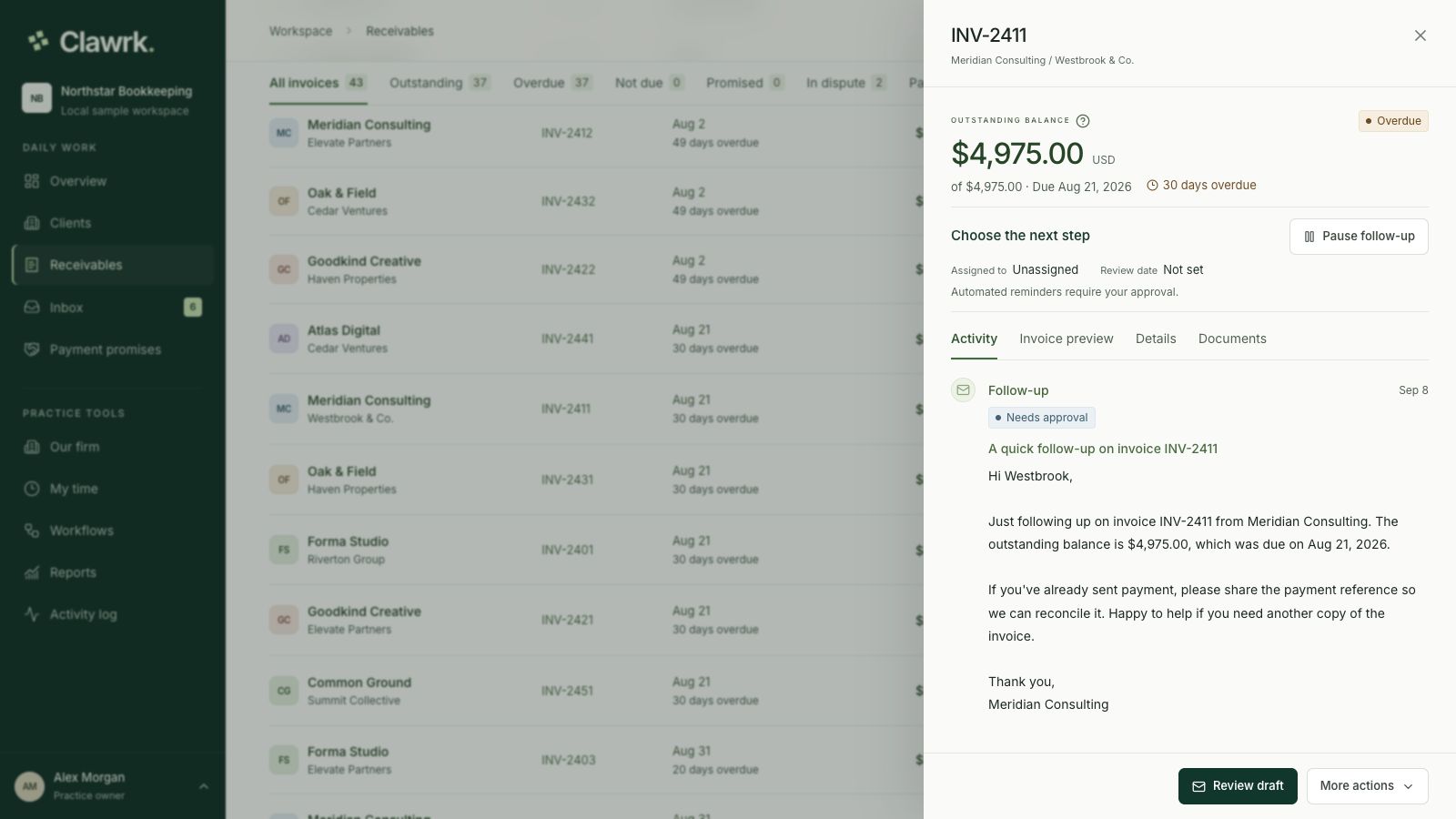
Yes. Use a manual ledger to import a CSV or enter invoices individually. Choose the source before adding records: connect the empty company if you plan to use QuickBooks for it. The video above uses fictional local sample records.
Who approves reminders, and who sends them?+
Your authorized teammates review, edit, and approve reminders in Inbox. Clawrk submits approved reminders through its email service, with the invoice business identified in the message. This does not connect a teammate's personal mailbox. Review the recipient and customer preview before approving. Connecting QuickBooks or saving a workflow does not start sending reminders.
Do customers need a Clawrk account?+
Your authorized teammates use the Clawrk workspace. Customers receive the reminders you approve and can reply by email. You do not need to create a Clawrk account for every invoice recipient.
What happens after a reply, dispute, or payment promise?+
A customer reply pauses follow-up for review. Disputed invoices and active payment promises hold further reminders. Your team reviews the next step; a promise is not a recorded payment. When outreach is appropriate again, review and approve a fresh reminder.
What setup and ongoing work will our team need to do?+
Choose your workspace type and verify your account. Business setup creates your company; practices add a client. Choose the invoice source and check the imported details. Then agree who will review drafts and replies. Connection permissions and the condition of your records affect setup time. Start with one company and one normal follow-up session, and ask us if you need help.
What does it cost to try?+
New workspaces get a 14-day trial for one business or up to 3 practice client companies, with no credit card required. Published plans include unlimited teammates. The Pricing page shows current client capacity and reminder allowances.
What if we decide to stop?+
You can export your workspace records and disconnect QuickBooks. Ending a trial or paid subscription retains read and export access under the normal account policy. Closing the workspace is a separate action with a stated retention and deletion process.
How is our business data handled?+
Workspace membership and roles control access. The product includes optional authenticator verification, encrypted accounting tokens, private document storage, and data export controls. The Security & data and Privacy pages explain the implemented safeguards and provider responsibilities.