THE CLAWRK WORKSPACE

From work to
the next payment.

Record hours, review timesheets, and keep invoices, reminders, and replies moving.

14 days. No credit card required.

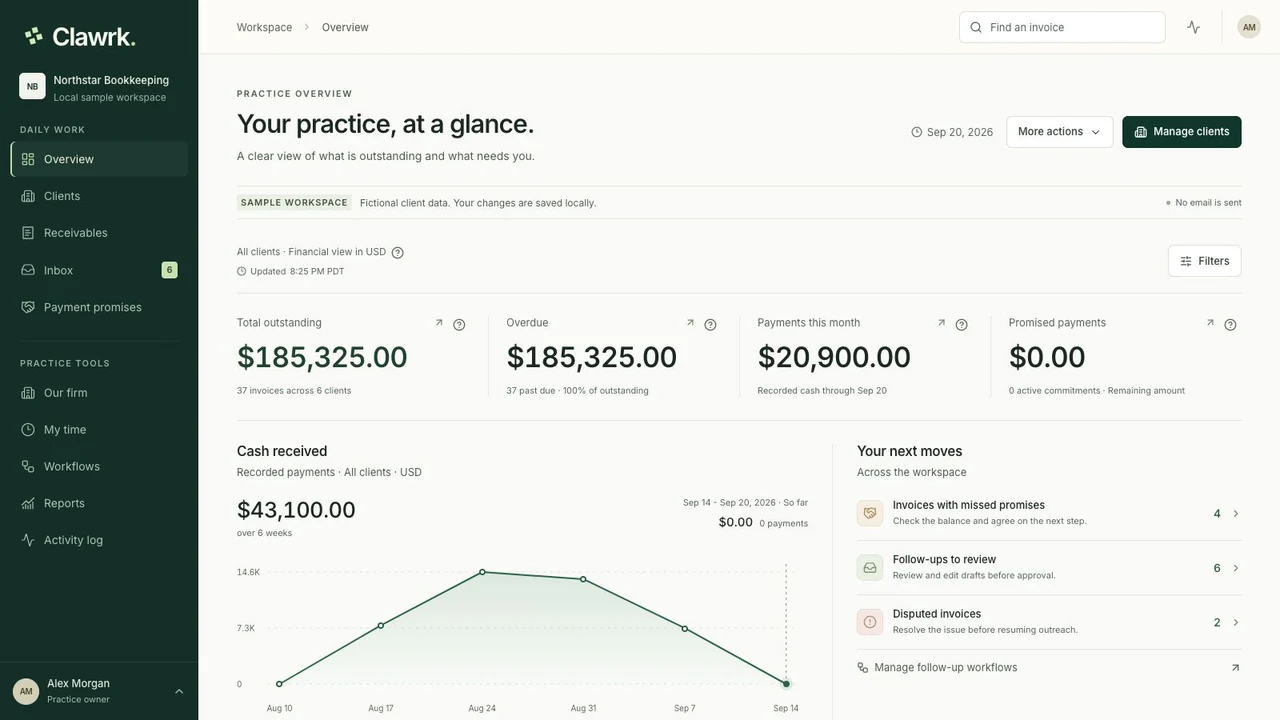
Clawrk / Your practice, at a glance

app.clawrk.com
Clawrk practice overview with outstanding balances, follow-up priorities, and payment promises in a fictional sample practice

Actual Clawrk workspace. Fictional sample data.

ONE PRODUCT. TWO WAYS TO WORK.

Your company, or your clients.
A workspace that fits.

Invoice follow-up and team time, organized around the work you do.

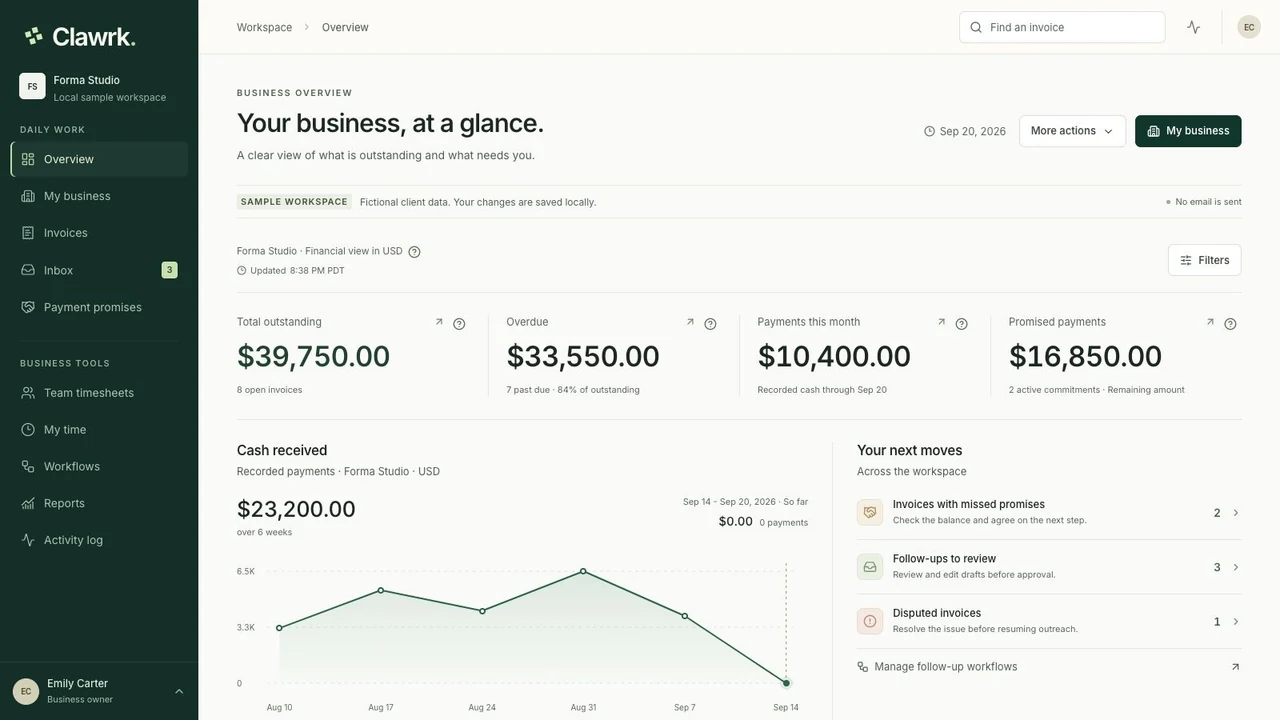
FOR BUSINESS OWNERS

Keep your own invoices moving.

One company, its customers, and every unpaid invoice. Invite your colleagues or bookkeeper while keeping ownership of your workspace.

  • Your company is created during setup.
  • My business keeps customers and accounting together.
  • Track team hours, review weekly timesheets, and export approved time.
Explore the business setup Business pricing →
FOR BOOKKEEPING FIRMS

Follow through for every client.

A portfolio of client companies, each with its own invoices and accounting connection. Give your bookkeeping team a shared view of what needs attention.

  • Add the companies whose books you manage.
  • Review one client or the whole practice.
  • Record client work and turn approved billable hours into firm invoices.
Explore the practice setup Practice pricing →
BUILT AROUND YOUR WORK

Eight connected capabilities. One clear place to work.

01Receivables

The whole picture. Down to one invoice.

See what is outstanding for your business or across practice clients, then open an invoice with the context you need to choose the next step.

  • Keep your business ledger clear; practices can manage multiple companies.
  • Review the customer, due date, balance, and history.
  • Bring in QuickBooks records, a CSV, or manual invoices.
WHERE TO FIND IT
  1. Receivables
  2. Open an invoice
See the review workflow
Example client ledger. Open the invoice that needs attention.

Currencies stay separate, from workspace totals to the individual invoice.

02Reminders

A personal reminder. With your approval.

Prepare a thoughtful follow-up, then give your team a clear place to review it before it goes out.

  • Prepare a draft from the invoice or your workflow.
  • Review the recipient, amount, and message in Inbox.
  • Track submitted, delivered, bounced, and failed states.
WHERE TO FIND IT
  1. Invoice
  2. Prepare follow-up
  3. Inbox
Follow the reminder guide
Example draft. Your team approves; Clawrk checks before submission.

The latest QuickBooks balance and current holds are checked before sending.

03Replies

Keep the conversation with the invoice.

Pick up where your teammate left off. Customer replies, internal notes, and the invoice history stay connected.

  • Read incoming replies alongside the invoice context.
  • Log conversations handled outside Clawrk.
  • Review a reply before resuming follow-up.
WHERE TO FIND IT
  1. Inbox
  2. Replies
  3. Open the invoice
Learn how reply review works
Illustrative conversation. Team notes are separate from customer messages.

Replies pause follow-up. Resuming does not send an old held message.

04Promises

A date to remember. A pause with purpose.

Turn a customer commitment into a recorded amount and date. Give promises and disputes the attention they need.

  • Record the promised amount and expected payment date.
  • Review active, missed, and fulfilled commitments.
  • Pause disputed invoices while a question is resolved.
WHERE TO FIND IT
  1. Invoice
  2. Record promise
  3. Payment promises
Read the promises and payments guide
Example commitment for MS-1042, with a separate disputed invoice below.

A promise holds follow-up until its agreed date. It does not mark an invoice paid.

05Reports

A clear update. Backed by the records.

Review balances and recorded payments for your own company. Practices can also review a breakdown by client company.

  • Review outstanding and overdue amounts by currency.
  • Keep cash received and credits in separate totals.
  • Print the report or export a CSV for your records.
WHERE TO FIND IT
  1. Reports
  2. Review totals
  3. Export or print
See how the records stay connected
Illustrative report. USD and CAD balances are not added together.

Take a dated snapshot into team or client meetings, or export the underlying records as a CSV.

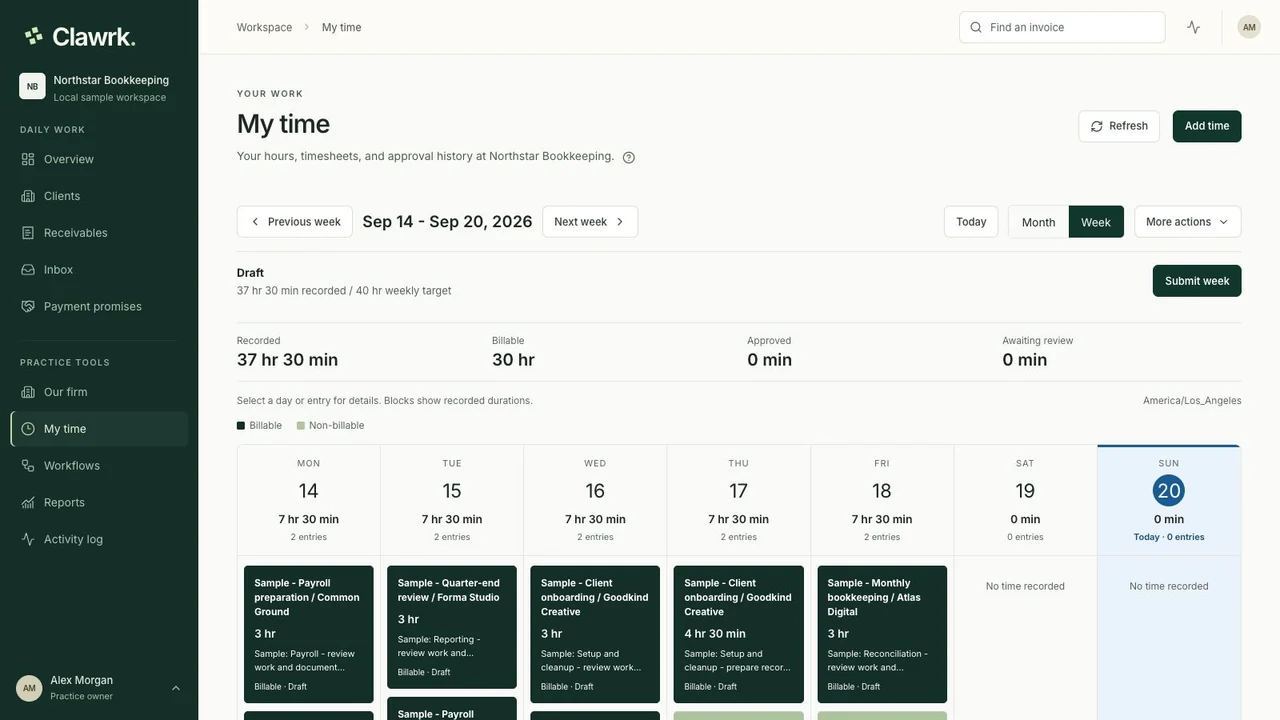
06Time & timesheets

Record the work. Review the week.

Keep client work and internal hours on one firm timesheet. Your team can add hours manually or use a timer, then submit the week for review.

  • Browse your hours in weekly and monthly calendars.
  • Approve submitted time or return it with a correction reason.
  • Filter reports and export matching entries to Excel, CSV, or PDF.
WHERE TO FIND IT
  1. My time
  2. Our firm or Team timesheets
See how time recording works
My time weekly calendar with fictional recorded client and internal work in the current Clawrk interface
Team access is managed in Settings → Team.

Timesheets-only teammates see their assigned time. Reviewers can review team hours without seeing private rates.

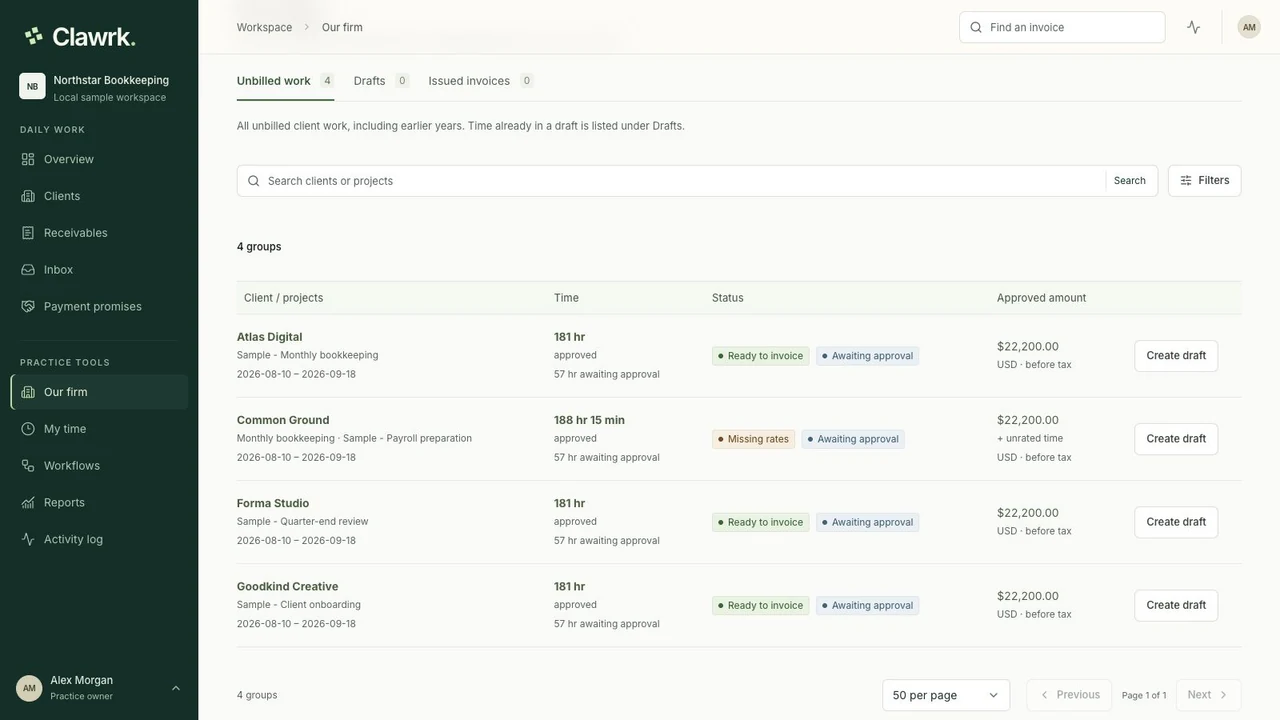
07Firm invoicing

From approved hours to a client invoice.

Bookkeeping practices can find unbilled client work in Our firm → Billing and prepare invoices for their own services.

  • Review unbilled work, drafts, and issued invoices across clients.
  • Finalize a PDF, preview the firm-branded email, and send it with the invoice attached.
  • Connect your firm books and match clients to QuickBooks customers to sync invoices.
WHERE TO FIND IT
  1. Our firm
  2. Billing
Follow the firm invoicing guide
Our firm Billing with unbilled sample client work, approval statuses, and draft invoice actions
Firm invoices charge for your services; client receivables track what customers owe your clients.

Finalizing, sending an email, and syncing to QuickBooks are separate steps with separate statuses.

08Your team

One shared workspace. The right access.

Manage employees and contractors in one place. Invite people who need to sign in, or record hours on their behalf. Unlimited teammates are included on every plan.

  • Manage employees, contractors, invitations, and roles in Settings → Team.
  • Choose Timesheets only for time access without client financial records.
  • Enable an authenticator and save account recovery codes.
WHERE TO FIND IT
  1. Settings
  2. Team or Personal account
Follow the team and account guide
Role overview. Each teammate has their own account and security settings.

The owner manages billing and workspace closure. Other access follows the assigned role.

THE COMPLETE WORKSPACE

Tools for your work.
A plan that fits.

Choose one business or the client capacity your practice needs. Time tracking and unlimited teammates are included; firm invoicing is for practices.

Compare plans

See the features work together.

Follow one invoice through the workflow, or keep the Help center open as you set up.

GOOD QUESTIONS

A few practical details.

Talk to us
Do all plans include these features?

All plans include collections, time tracking, weekly approvals, and unlimited teammates. Firm invoicing is available in practice workspaces. Business supports one company; practice plans support client portfolios. Reminder allowances and client capacity vary by plan.

Can teammates track time without seeing invoices or rates?

Yes. Choose Timesheets only access in Settings > Team and enable time recording. They can record and submit their own hours. An assigned reviewer can review team hours, while hourly costs and bill rates remain private to owners and admins.

Can an administrator record hours for someone else?

Yes. Add the employee or contractor in Settings > Team and choose to record their hours without inviting them. An administrator enters their time; the person has no login. You can invite them later and keep their saved time history.

Can I use Clawrk without QuickBooks?

Yes. Start a manual ledger, then import a CSV or add invoices individually. If QuickBooks will be your accounting source, connect the empty company before adding manual invoices.

Will Clawrk update my QuickBooks records?

Clawrk reads connected client receivables from QuickBooks. Record payments and corrections there. Separately, practice owners and admins can sync finalized firm invoices to their own QuickBooks books after mapping the customer and service item.

Does connecting QuickBooks start sending reminders?

No. Customer reminders need your team's approval and checks before submission. A changed balance, reply, dispute, or active promise can stop follow-up. Approved and delivered are separate states.
CLAWRK FOR BUSINESSES AND BOOKKEEPERS

Put your next invoice in context.

Start with your own invoices or one practice client, and share the next step with your team.

Start free trial14 days. No credit card required.